
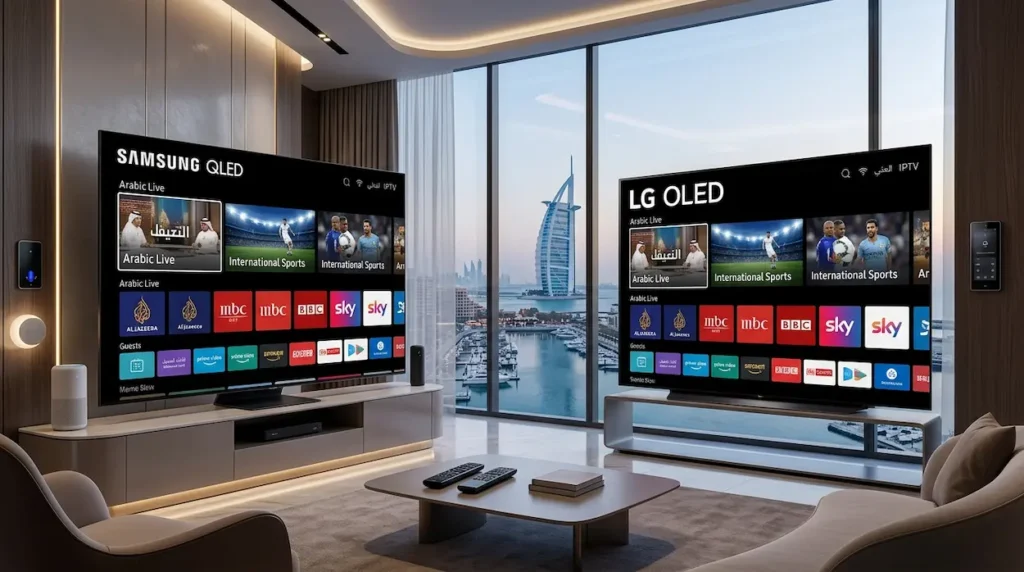
In the UAE, smart TVs have revolutionized the viewing experience of entertainment. Many users are now opting for IPTV services over the traditional cable and satellite TV packages because of its flexibility, availability of international channels, sports, movies and on-demand content.
But it is a challenge for the beginners to install IPTV on a Samsung or LG Smart TV. Frequently asked questions are: which IPTV app should I use, how do I add IPTV playlists, why is my IPTV buffering?
The great news is that setup of IPTV on a Smart TV is not as hard as many people believe.
This is a comprehensive IPTV guide for beginners that will teach you how to install and setup IPTV on Samsung and LG Smart TVs in the UAE. Additionally, we will discuss the best IPTV apps, troubleshooting tips, internet requirements, security advice and common mistakes that you should avoid.
Whether you own a Samsung Smart TV or an LG webOS TV, this step-by-step tutorial will help you get IPTV working smoothly in 2026.
What Is IPTV and Why Is It Popular in UAE?
IPTV is known as Internet Protocol Television. IPTV broadcasts TV channels and video content via the internet, rather than from satellites.
This enables the users to gain access to:
- Live TV channels
- International entertainment
- Sports packages
- Movies and TV shows
- Arabic content
- Video-on-demand libraries
IPTV has gained widespread popularity in the UAE, offering a more cost-effective way for residents to access entertainment from around the world without the hefty cable bills.
IPTV is a popular choice for residents of Dubai, Abu Dhabi, Sharjah, Ajman, and the rest of UAE cities due to its various benefits, such as:
- Multi-language channels
- Flexible subscriptions
- HD and 4K streaming
- Support for Smart TVs
- On-demand entertainment
The Samsung and LG Smart Televisions Are Excellent for IPTV
Samsung and LG smart televisions are great for playing IPTV.
Samsung and LG TVs are among the best Smart TVs for IPTV streaming as they already come with strong operating systems and App stores.
Samsung Smart TV Features
The Tizen operating system is used by Samsung TVs, and it can support numerous IPTV applications.
Benefits Include
- Smooth streaming performance
- User-friendly interface
- Fast app installation
- Excellent 4K support
- Stable WiFi connectivity
LG Smart TV Features
The webOS operating system is used by LG Smart TVs.
Advantages Include
- Easy navigation
- Great support for IPTV apps
- Good video processing
- Reliable streaming quality
- Voice control integration
Both brands perform very well as IPTV if set up properly.
Before You Set Up IPTV, You Should Have the Following Items
Before starting the installation process, make sure you have everything ready.
IPTV Subscription
You need to have a live IPTV service from a trustworthy provider.
Usually, providers give:
- M3U playlist URL
- Xtream Codes login
- Username and password
- Server URL
Stable Internet Connection
It requires a quick and reliable internet connection.
Recommended Internet Speeds
| Streaming Quality | Recommended Speed |
|---|---|
| SD Streaming | 10 Mbps |
| HD Streaming | 20 Mbps |
| 4K Streaming | 40+ Mbps |
Rather than WiFi, Ethernet sometimes provides better IPTV stability.
Compatible Smart TV
You need either:
- Samsung Smart TV
- LG Smart TV
The majority of the latest 5–7 year old IPTV channels will help IPTV applications.
The Best IPTV Apps for Samsung and LG Smart TVs
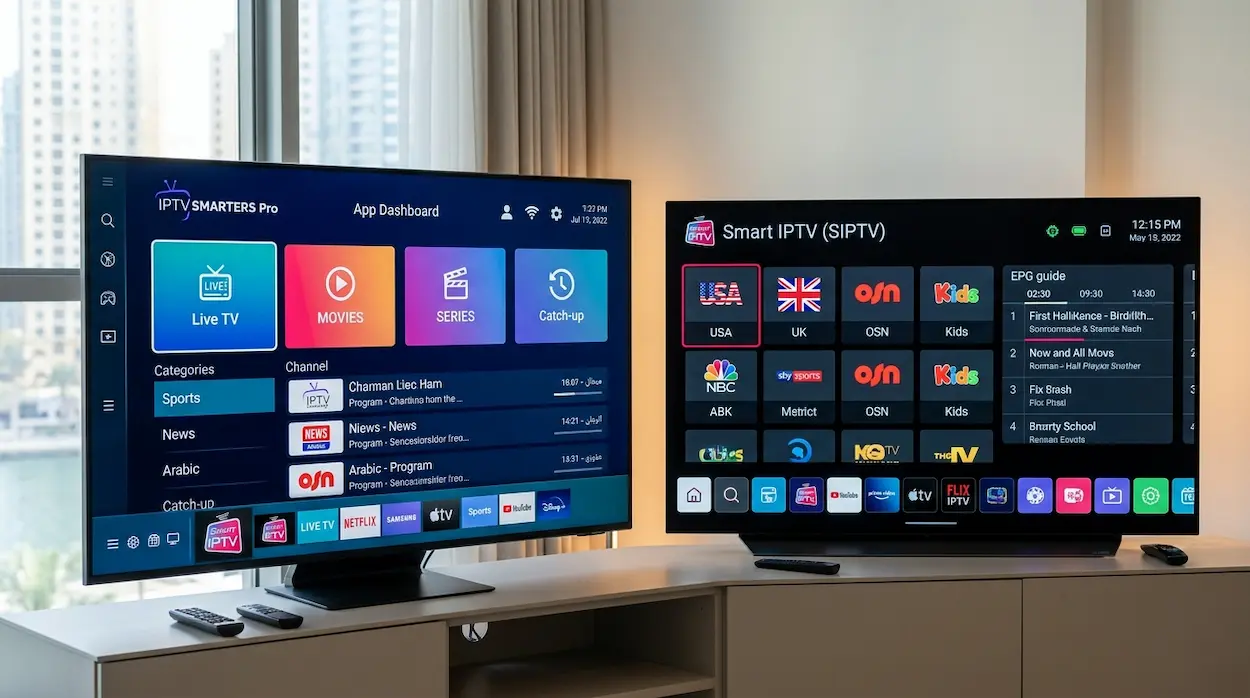
Selecting the correct IPTV player is very important. If you want a deeper comparison of the most popular IPTV apps, check out our guide on Best IPTV App Dubai 2026: TiviMate vs IPTV Smarters vs GSE.
These Apps do not offer channels. Rather, they let you add IPTV subscriptions from providers.
Best IPTV Apps for Samsung Smart TVs
IPTV Smarters Pro
A popular IPTV application around the globe.
Features
- User-friendly dashboard
- Xtream Codes support
- EPG integration
- Multi-screen viewing
- VOD support
Smart IPTV (SIPTV)
A dependable IPTV application that is widely used by Samsung TV owners.
Benefits
- Easy playlist management
- Stable streaming
- Simple interface
- Supports M3U playlists
SET IPTV
Another favourite choice for Samsung TV owners.
Advantages
- Fast setup
- Good streaming stability
- Encourages current IPTV formats
Best IPTV Apps for LG Smart TVs
IPTV Smarters Pro
Perfect for LG webOS TV’s.
Smart IPTV
One of the simplest IPTV applications for novices.
Flix IPTV
Loved for its user-friendly design and cutting-edge capabilities.
Key Features
- Subtitle support
- External player integration
- Custom themes
- Easy playlist upload
Samsung vs LG Smart TV for IPTV
| Feature | Samsung Smart TV | LG Smart TV |
|---|---|---|
| Operating System | Tizen OS | webOS |
| IPTV App Availability | Excellent | Excellent |
| Easy Navigation | Allows users to easily navigate the system without getting lost or overwhelmed | Easy to use and navigate for beginners |
| App Speed | Fast | Fast |
| 4K Streaming | Excellent | Excellent |
| IPTV Compatibility | High | High |
Both TVs are highly capable of IPTV service in the UAE.
Step-by-Step Guide to Set Up IPTV on Samsung Smart TV
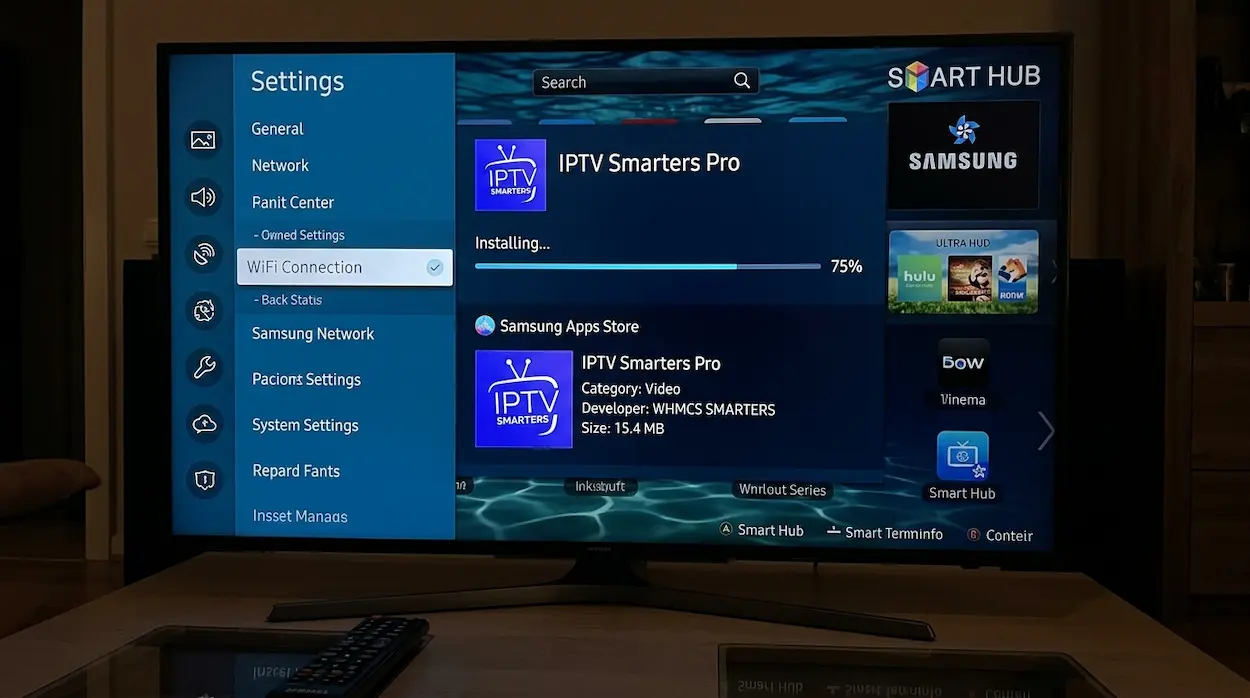
Let’s now look at the real installation process.
Step 1: Connect Samsung TV with Internet
The first thing to do is to connect your Samsung TV to Wi-Fi or Ethernet.
How to Connect
- Open Settings
- Go to Network
- Select WiFi connection
- Enter your password
- Confirm internet access
Internet connectivity plays a crucial role in the smooth streaming of IPTV services.
Step 2: Open Samsung App Store
Samsung TVs come with an app store.
To Access It
- Press the Home button
- Open Apps
- Search using the search bar
Step 3: Install IPTV App
Look for one of these apps:
- IPTV Smarters Pro
- Smart IPTV
- SET IPTV
Click Install.
Wait until it is installed to start work.
Step 4: Open IPTV App
After installation:
- Open the IPTV application
- When asked for permission, accept it
You will now see login options.
Step 5: Enter IPTV Subscription Details
The majority of IPTV apps support two ways.
Method 1: Xtream Codes API
Enter:
- Username
- Password
- Server URL
This is typically the simplest choice.
Method 2: M3U Playlist URL
Enter your IPTV provider’s Playlist URL.
Then press Add User or Login.
Step 6: Wait for Channels to Load
The IPTV app will now:
- Download channels
- Import categories
- Load EPG data
This may take a few minutes.
Once the setup is completed, you are ready to watch IPTV.
After setup, you can savor:
- Live TV
- Sports channels
- Movies
- TV series
- International entertainment
directly on your Samsung Smart TV.
Follow the Guide Below to Stream IPTV on LG Smart TV
LG TVs are no exception.
Step 1: Connect the LG TV to the Internet
Go to:
Settings → Network → WiFi
Make sure the TV is connected to a sturdy internet.
Step 2: Open the LG Content Store App
This is a place where LG’s various applications are available to download.
Search for:
- IPTV Smarters Pro
- Smart IPTV
- Flix IPTV
Step 3: Install IPTV Application
Click Install and wait until it is finished.
Step 4: Open IPTV App
Once installed, open the app.
Step 5: Enter IPTV Login Information
Use either:
- Xtream Codes login
- M3U playlist URL
Available from your IPTV provider.
Step 6: Load Channels and EPG
The app will sync up:
- Live channels
- Movies
- TV shows
- Program guides
Step 7: Begin Streaming
IPTV is now available to view directly from your LG Smart TV.
Best IPTV Settings for Smooth Streaming
A lot of IPTV buffering issues are due to incorrect settings.
Use Ethernet Connection Rather Than WiFi
Ethernet provides:
- Lower latency
- Better stability
- Faster speeds
It is particularly important in the case of 4K IPTV.
Adjust the Size of the Video Buffer
Some IPTV applications include options to configure buffering.
A slight increase in the buffer will decrease interruptions.
Ensure That All IPTV Apps Are Updated
Having obsolete IPTV apps can lead to:
- Crashes
- Playback issues
- Slow performance
Keep apps up to date.
Restart Router Weekly
This easy tip enhances:
- Connection stability
- Streaming speed
- Device responsiveness
Common IPTV Problems on Smart TVs
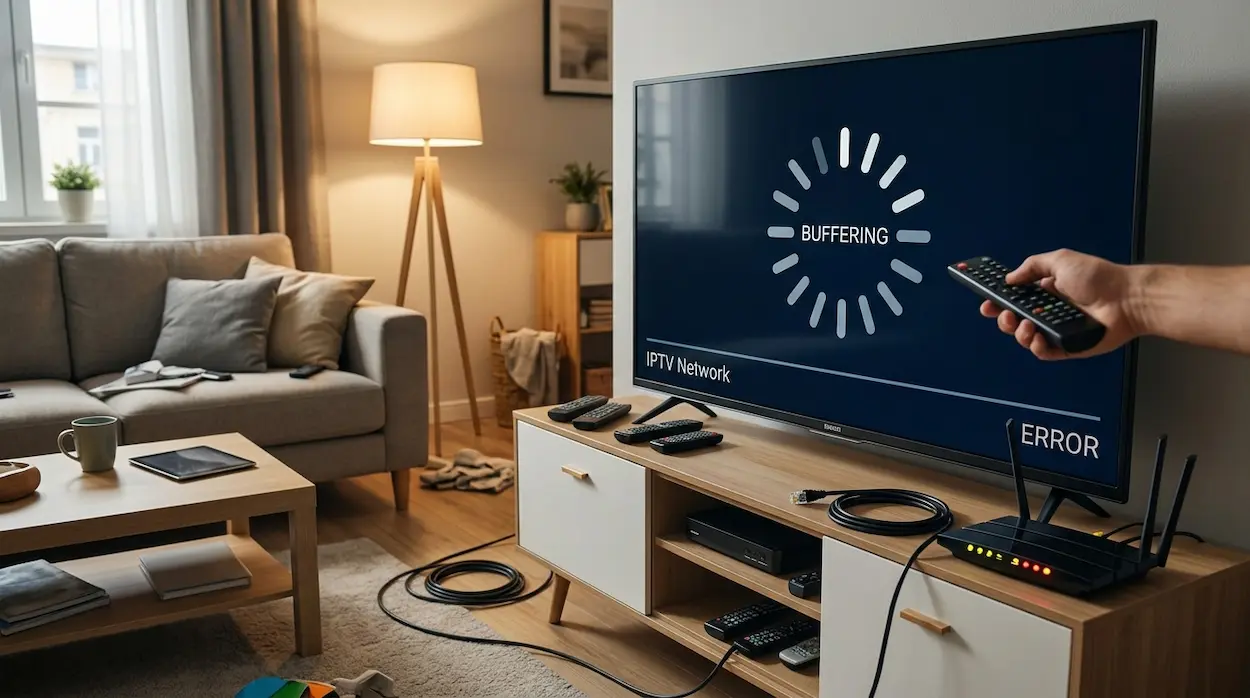
Even the most dependable IPTV service providers can have challenges.
IPTV Buffering
Causes
- Slow internet
- Weak WiFi signal
- Overloaded IPTV servers
Solutions
- Use Ethernet
- Restart router
- Reduce streaming quality
- Change IPTV server (if possible)
IPTV App Freezing
Possible Reasons
- Low TV memory
- App bugs
- Outdated firmware
Fixes
- Restart TV
- Update firmware
- Reinstall IPTV app
Channels Not Loading
This is frequently a result of:
- Playlist expired
- IPTV subscription inactive
- Wrong login details
Never assume that credentials are accurate.
Best IPTV Apps for Beginners in UAE
| IPTV App | Beginner Friendly | M3U Support | Xtream Codes | Smart TV Support |
|---|---|---|---|---|
| IPTV Smarters Pro | Excellent | Yes | Yes | Samsung & LG |
| Smart IPTV | Very Good | Yes | Limited | Samsung & LG |
| Flix IPTV | Excellent | Yes | Yes | LG |
| SET IPTV | Good | Yes | Yes | Samsung |
IPTV Security Tips for UAE Users
When it comes to IPTV services, security is an important consideration.
Avoid Suspicious IPTV Providers
Avoid service providers that promise:
- Unrealistic prices
- Thousands of fake channels
- No customer support
Safeguard Your IPTV Credentials
Never share:
- IPTV username
- Password
- Server URL
with strangers.
Use Strong WiFi Passwords
That means that unauthorized individuals can’t access your network.
Using a VPN for IPTV
There are numerous reasons why many people choose to use VPNs with IPTV:
- Privacy
- Security
- Streaming consistency
But speed of the VPN service provider is significantly important.
This is because of a slower VPN service that may cause buffering.
IPTV Pros and Cons on Smart TVs
Advantages
- No additional hardware required
- Affordable entertainment
- Thousands of channels
- 4K streaming support
- Easy app installation
- Flexible subscriptions
Disadvantages
- Requires stable internet
- The activation fee is required for some apps
- The poor IPTV providers could buffer
- Limited smart TV storage
Which Is Better between Smart TV IPTV or Firestick?
Smart TVs are compared with Amazon Firestick by many UAE users.
| Feature | Smart TV IPTV | Firestick IPTV |
|---|---|---|
| Extra Device Needed | No | Yes |
| Ease of Setup | Easy | Easy |
| Performance | Good | Excellent |
| Portability | Low | High |
| App Flexibility | Moderate | Excellent |
| Storage | Limited | Better |
While Firestick may offer more flexibility, Smart TVs are easier for novices.
IPTV Is a Technology That Has Recently Gained Popularity in Dubai
Recently a Dubai citizen replaced the costly satellite TV with IPTV using the LG smart TV.
They first had buffering problems with the weak WiFi signal. Once switched to Ethernet and the internet speed was increased, streaming was smooth even during live football matches.
This is a great lesson to be learned:
Quality of the internet is important in most cases, rather than the quality of the IPTV app.
How to Choose the Best IPTV Provider in UAE
When considering IPTV, make sure you have considered these factors.
Server Stability
If you have a reliable provider, you can count on the consistency in uptime.
Channel Quality
Look for:
- HD channels
- 4K support
- Minimal buffering
Customer Support
When solving problems it is important to have responsive support.
Trial Availability
A good IPTV provider typically will provide:
- Free trials
- Short-term plans
- Demo accounts
This lowers the risk.
Future of IPTV on Smart TVs in UAE
IPTV is an ever-expanding market in UAE.
The future of IPTV is filled with exciting possibilities, with the following trends expected in 2026 and beyond:
- AI-powered recommendations
- Faster 4K streaming
- TV integration is enhanced
- Enhanced Arabic content libraries
- Cloud-based IPTV systems
Both Samsung and LG televisions will keep leading the IPTV streaming market due to their robust app ecosystems and impressive hardware capabilities.
Frequent Queries (FAQ)
Is It Possible to Connect IPTV to Samsung Smart TV?
Yes. Samsung Smart TVs can play IPTV applications such as IPTV Smarters Pro, Smart IPTV or SET IPTV.
Is IPTV Available on LG TVs?
Yes. LG webOS TVs can play multiple IPTV apps, such as IPTV Smarters and Flix IPTV.
What Is the Best IPTV App for First Time Users?
IPTV Smarters Pro is typically the most user friendly solution for newbies due to its easy operation and simplicity to set up.
Do I Need a Fast Internet Connection for IPTV?
Yes. The minimum requirement for smooth HD streaming is 20 Mbps.
Is IPTV Subscription-Free?
No. IPTV apps need an energetic IPTV service subscription to stream channels.
What Causes the Buffering of IPTV on Smart TV?
Commonly, buffering occurs due to slow internet, weak WiFi signals, overloaded servers, or outdated IPTV applications.
Final Thoughts
Installing IPTV on Samsung or LG SMART TV in UAE is not as difficult as many people think. The ultimate goal is to watch thousands of live channels, movies, sports events and foreign entertainment right from your Smart TV with a stable internet connection and reliable IPTV provider with the right IPTV App.
Both Samsung and LG Smart TVs are very compatible with IPTV services, stream the content perfectly and have a user-friendly interface, making them ideal for IPTV beginners.
But the most important thing is selecting the right IPTV app. You also need:
- Stable internet
- Reliable IPTV provider
- Proper setup
- New software for Smart TVs
Choose a reputable IPTV provider, carefully test the streaming quality, and optimize your internet connection for the best results.
With everything set up properly, IPTV can revolutionize your in-home entertainment in the UAE.